Google Play Games on PC: What It Is and How to Get Started
Play Android games on your Windows PC with Google Play Games. Learn system requirements, how progress syncs with your phone, and which games work best.
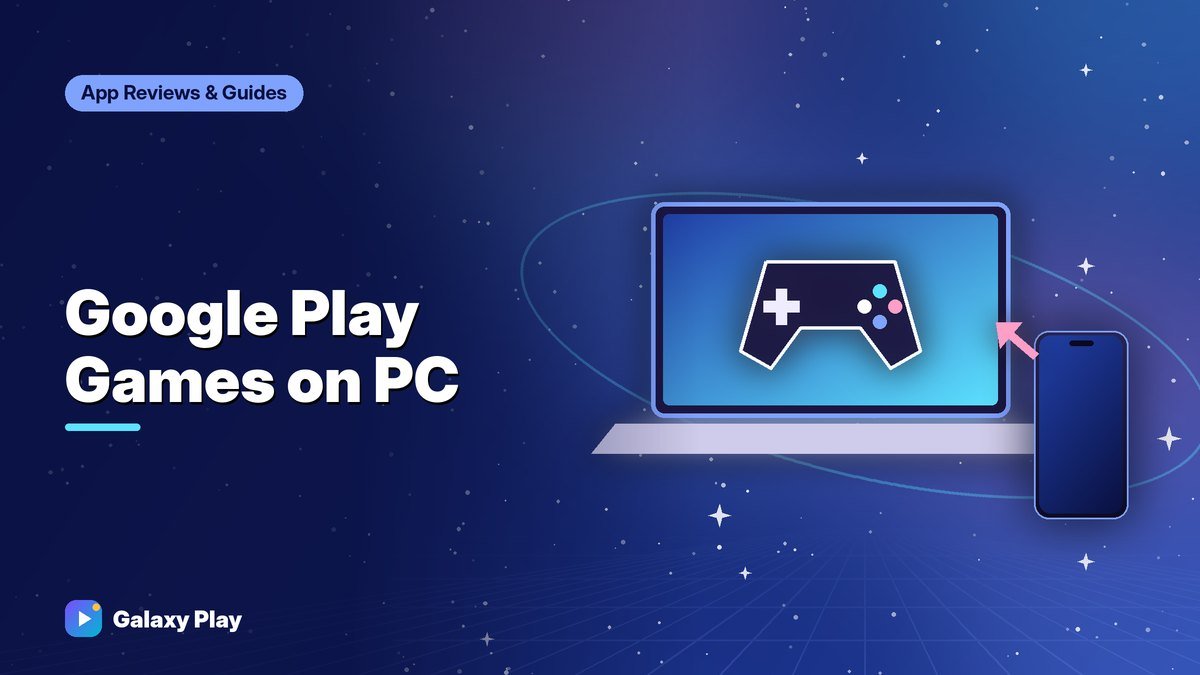
Google Play Games on PC is an official Google app that lets you play many Android games on a Windows computer. You get a bigger screen, keyboard and mouse controls, and — in supported games — your progress syncs with your phone. Here’s what you need to know.
What Google Play Games on PC does
- Runs a selection of Android games on Windows
- Lets you use keyboard and mouse (and controllers in some games)
- Syncs progress across devices in games that support it
- Uses your Google account, so purchases are tied to the same account
It is not an emulator for every Android app. Developers choose to support it, so only certain games are available, though the catalog has grown to include many popular titles.
System requirements
Requirements can change, but you’ll generally need:
- Windows 10 or Windows 11 (64-bit)
- A solid-state drive with enough free space for games
- A modern multi-core processor and enough RAM (8 GB at minimum is common)
- Hardware virtualization turned on in your computer’s settings (BIOS/UEFI)
- A compatible graphics chip
Check Google’s official Play Games on PC page for the current list before installing.
Tip: If the installer says virtualization is off, search your PC maker’s support site for how to enable “Intel VT-x” or “AMD-V.” Be careful when changing BIOS settings, and only change the virtualization option.
How to get started
- Visit the official Google Play Games on PC website and download the installer.
- Run the installer and sign in with your Google account.
- Browse or search for games in the app’s library.
- Install a game and play.
Only download the app from Google’s official website — not from third-party download sites.
How progress syncs
When a game supports cross-device play, your progress is tied to your Google Play Games profile. You can play on your phone during your commute and continue on your PC at home. Games that use their own accounts, like a publisher ID, sync through those accounts instead.
Always confirm you’re signed in with the same account on both devices before playing.
Controls: keyboard, mouse, and controllers
Supported games come with keyboard and mouse controls already set up. Many show the key bindings on screen or in a settings menu. Some games also support controllers. Strategy and RPG games often feel more comfortable with a mouse than with touch controls.
Which games work best on PC?
| Game type | Why it works well |
|---|---|
| Strategy and card games | Precise mouse clicks, bigger view of the board |
| RPGs and idle games | Easy to leave running while you do other things |
| Puzzle games | Larger screen makes details easier to see |
| Shooters | Varies — some restrict PC players or match them separately |
Competitive games may limit or separate PC players for fairness, so check each game’s rules.
Is it better than an emulator?
Unofficial Android emulators can run more apps, but they come with risks: some bundle ads or unwanted software, and some games ban accounts that use them. Google Play Games on PC is official and supported by developers, so you won’t risk your account. If the game you want is available, the official app is the safer choice.
Common problems and fixes
- Installer won’t continue: Turn on virtualization and restart.
- Game won’t launch: Update your graphics drivers and restart Play Games.
- Progress not syncing: Confirm you’re using the same Google account on both devices, and check if the game supports cross-device saves.
Google Play Games on PC is a great free way to enjoy your favorite phone games on a bigger screen — especially for strategy, RPG, and puzzle fans.
Frequently asked questions
Is Google Play Games on PC free?
Yes. The app is free, and free games are free to play. Paid games and in-app purchases use your Google account’s payment methods just like on your phone.
Can I use Google Play Games on a Mac?
At the time of writing, it’s designed for Windows PCs. Check Google’s official page for current platform support.
Will I get banned for playing on PC?
No. Google Play Games on PC is an official platform supported by developers, unlike unofficial emulators.
Spotted something out of date? Apps change fast. Let us know and we’ll review the guide.