How to Customize Touch Controls and HUD Layouts for Better Aim
Set up a comfortable, accurate touch control layout in mobile games. Learn button sizing, claw layouts, transparency, and how to practice a new HUD.
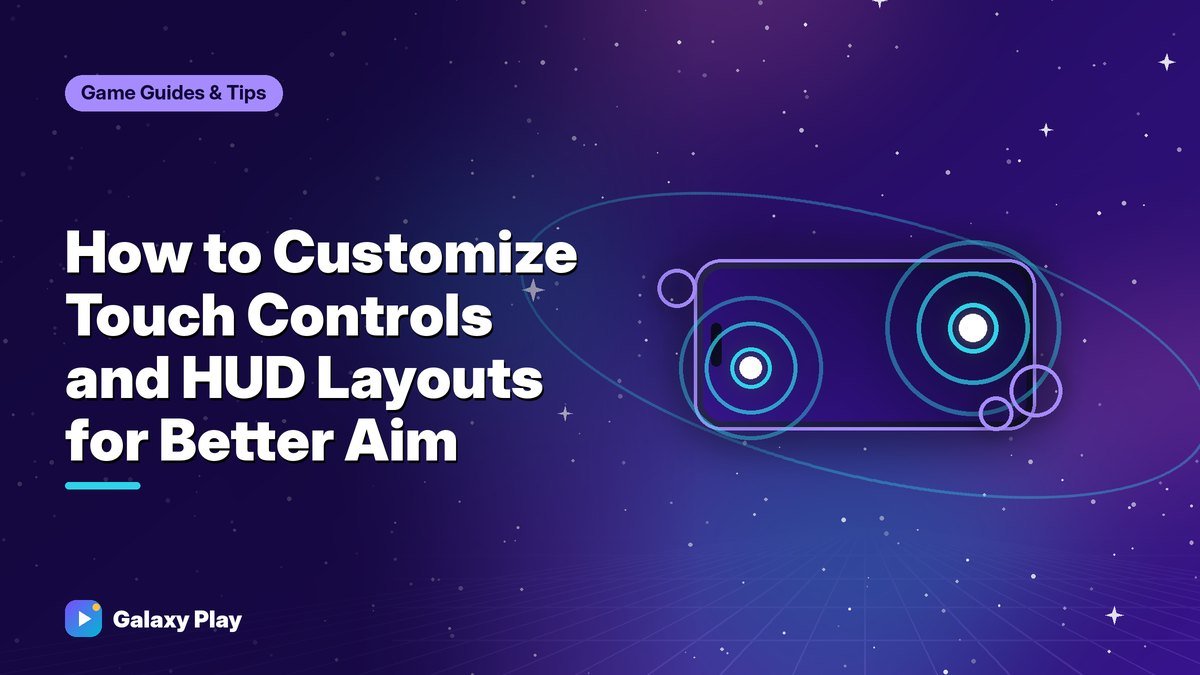
Most popular mobile games let you move and resize on-screen buttons, but many players never touch the layout editor. A well-designed HUD (heads-up display) can make your aim more accurate and your movement smoother — without buying a controller. Here’s how to build one that fits your hands.
Why the default layout holds you back
Default layouts are designed to be easy for new players to understand. That usually means you play with two thumbs: one to move, one to look and shoot. The problem is that your right thumb has to leave the aim area every time you jump, crouch, reload, or switch weapons, so you lose control at the worst moments.
Two thumbs, three fingers, or four?
| Layout | How it works | Best for |
|---|---|---|
| Two thumbs | Thumbs do everything | Casual play, puzzle and RPG games |
| Three fingers | Left index finger fires or jumps | Players switching from two thumbs |
| Four fingers (“claw”) | Both index fingers handle actions | Competitive shooters and battle royales |
Three-finger layouts are a good middle step. Put the fire button at the top-left of the screen where your left index finger rests naturally. Your right thumb can then stay on aiming the whole time.
How to build your layout
- Open the layout editor. It’s usually under Settings → Controls, often labeled “Custom layout” or “HUD.”
- Hold your phone the way you’ll play. Notice where your fingers rest without stretching.
- Move the most-used buttons to your fingers. Fire, aim, jump, and crouch matter most in shooters.
- Make important buttons bigger. A larger fire button is easier to hit in a panic.
- Shrink or hide buttons you rarely use. Emotes and some menus don’t need prime space.
- Lower transparency carefully. Semi-transparent buttons show more of the game, but too transparent and you’ll miss them.
- Save and name your layout so you can return to it.
Tip: Most games let you save several layouts. Keep the default as a backup while you experiment.
Leave a large aim zone
Your aim thumb needs space. If you place too many buttons on the right side, you’ll accidentally tap them while turning. Keep a clear area roughly the size of your palm in the center-right of the screen for aiming.
Fit the layout to your phone
A layout that works on a 6.7-inch phone may feel cramped on a smaller screen. Also consider:
- Phone cases: thick edges can block buttons near the screen border.
- Notches and camera cutouts: avoid placing buttons under them.
- Touch sampling: many gaming-focused phones and modes increase touch response; check your phone’s game settings.
Use the screen edges carefully
Android’s gesture navigation uses swipes from the bottom and side edges of the screen. If you accidentally go home mid-match, move buttons away from the edges or turn on your phone’s game mode, which can block gestures while you play. On many phones, you’ll find this in the game dashboard or game booster panel.
Practice the new layout properly
Changing layouts feels awkward at first. Make the transition easier:
- Spend 10 minutes a day in the training range for the first week.
- Play casual modes before ranked ones.
- Don’t switch back to your old layout after a bad match — consistency is how your hands learn.
Most players feel comfortable in about one to two weeks.
Prevent finger fatigue and sweat
Long sessions make fingers sweaty and sticky on glass. Many players use thin, inexpensive gaming finger sleeves, which reduce friction and help your thumbs glide. Keep sessions reasonable, stretch your hands, and take breaks — your accuracy drops when your hands are tired.
When a controller makes more sense
Some games support Bluetooth controllers, and for racing or platform games, physical buttons can feel much better. Competitive shooters often match controller players separately or don’t support controllers fully, so check before buying. Our guide to the best phone controllers can help you decide.
The bottom line
A custom layout is one of the biggest free upgrades in mobile gaming. Put your most-used actions under your fingers, give your aim thumb room, and practice for a week. You’ll move and shoot at the same time — and that alone wins many fights.
Spotted something out of date? Apps change fast. Let us know and we’ll review the guide.