Best Phone Controllers for Android: How to Pick the Right One
Compare Android phone controllers — clip-on, telescopic, and Bluetooth gamepads — with tips on fit, latency, game support, and which style suits how you play.
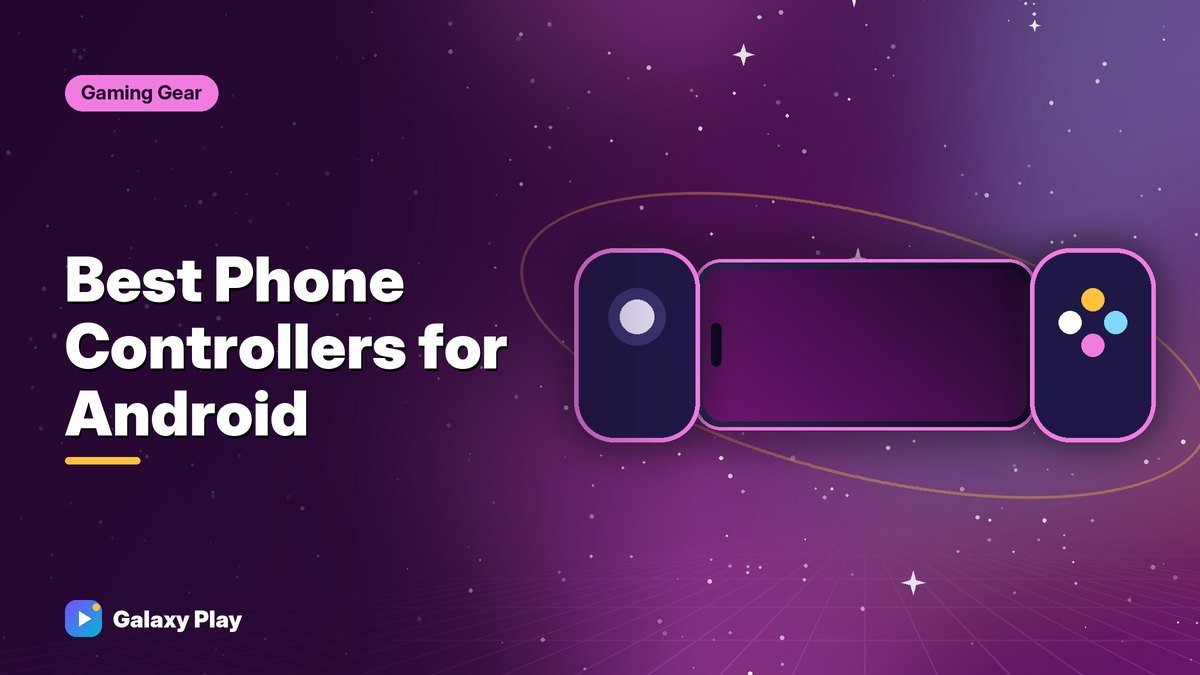
A physical controller can transform mobile gaming. Racing games feel more precise, platformers become easier to control, and cloud gaming suddenly feels like playing on a console. But Android controllers come in very different styles. Here’s how to pick the right one.
The three types of Android controllers
1. Telescopic (stretch) controllers
These grip both ends of your phone and turn it into something like a handheld console. Popular examples include the Backbone One, Razer Kishi V2, and GameSir G8 Galileo.
- Connection: Usually plug directly into your phone’s USB-C port, which means almost no input delay and no battery to charge.
- Pros: Portable, low latency, comfortable for long sessions.
- Cons: Must fit your phone’s size and USB-C port position; thick cases usually need to come off.
2. Bluetooth gamepads
Standard controllers like the Xbox Wireless Controller, PlayStation DualSense, and many 8BitDo controllers connect to Android over Bluetooth.
- Pros: Full-size and comfortable; you may already own one.
- Cons: You need a phone clip or stand; Bluetooth adds slight delay; must be charged.
3. Clip-on and one-sided controllers
Smaller controllers that attach to one side of the phone or clip on top. They’re compact, but often less comfortable and with fewer buttons.
What to look for
| Feature | Why it matters |
|---|---|
| Phone fit | Check the supported phone length and camera bump clearance |
| USB-C passthrough | Lets you charge your phone while playing |
| Headphone jack | Some controllers add a 3.5mm jack for wired headphones |
| Hall effect sticks | Magnetic thumbsticks resist “stick drift” over time |
| Companion app | Lets you remap buttons and update firmware |
| Case compatibility | Some include adapters for thin cases |
Tip: Before buying a telescopic controller, measure your phone and check the manufacturer’s compatibility list. Large foldables and phones with big camera bumps are the most likely to have fit issues.
Check game support first
Not every Android game supports controllers. Racing, platformer, emulated retro classics from official stores, and many console ports work great. Some popular competitive shooters limit or don’t support controllers, or match controller players separately.
Good controller-friendly categories include:
- Cloud gaming services like Xbox Cloud Gaming and GeForce NOW
- Racing games
- Action and platform games like Dead Cells
- Minecraft
- Remote play apps like Steam Link and PS Remote Play
Search the game’s name plus “controller support” or look in its settings menu for a controller option.
How to connect a Bluetooth controller
- Put the controller into pairing mode (check its manual — often a pairing button or holding a button combo).
- On your phone, open Settings → Connected devices → Pair new device (on Samsung, Settings → Connections → Bluetooth).
- Select the controller from the list.
- Open a game and test the buttons.
Price ranges
Controller prices vary with sales and new models, but generally:
- Budget Bluetooth gamepads and clips: low cost, fine for casual play
- Telescopic controllers from major brands: mid-range, often around the price of a new console game or more
- Premium controllers with extra features: higher, often with subscriptions or app perks bundled
You don’t need the most expensive model. A well-reviewed telescopic controller that fits your phone is the best upgrade for most people.
Our recommendations by player type
- Cloud gamers and console fans: A telescopic USB-C controller for the lowest latency.
- People who already own an Xbox or PlayStation controller: Buy a phone clip first and see if you like it.
- Tablet players: A Bluetooth gamepad with a tablet stand.
- Retro and platform fans: A compact 8BitDo-style controller with a good D-pad.
Care and maintenance
- Unplug telescopic controllers when not playing to avoid stress on the USB-C port.
- Keep firmware updated through the companion app.
- Clean thumbsticks with a dry cloth; avoid liquids near the port.
A good controller is one of the most satisfying upgrades in mobile gaming. Match the type to how you play, confirm it fits your phone, and you’ll wonder how you ever played some games with touch controls.
Spotted something out of date? Apps change fast. Let us know and we’ll review the guide.